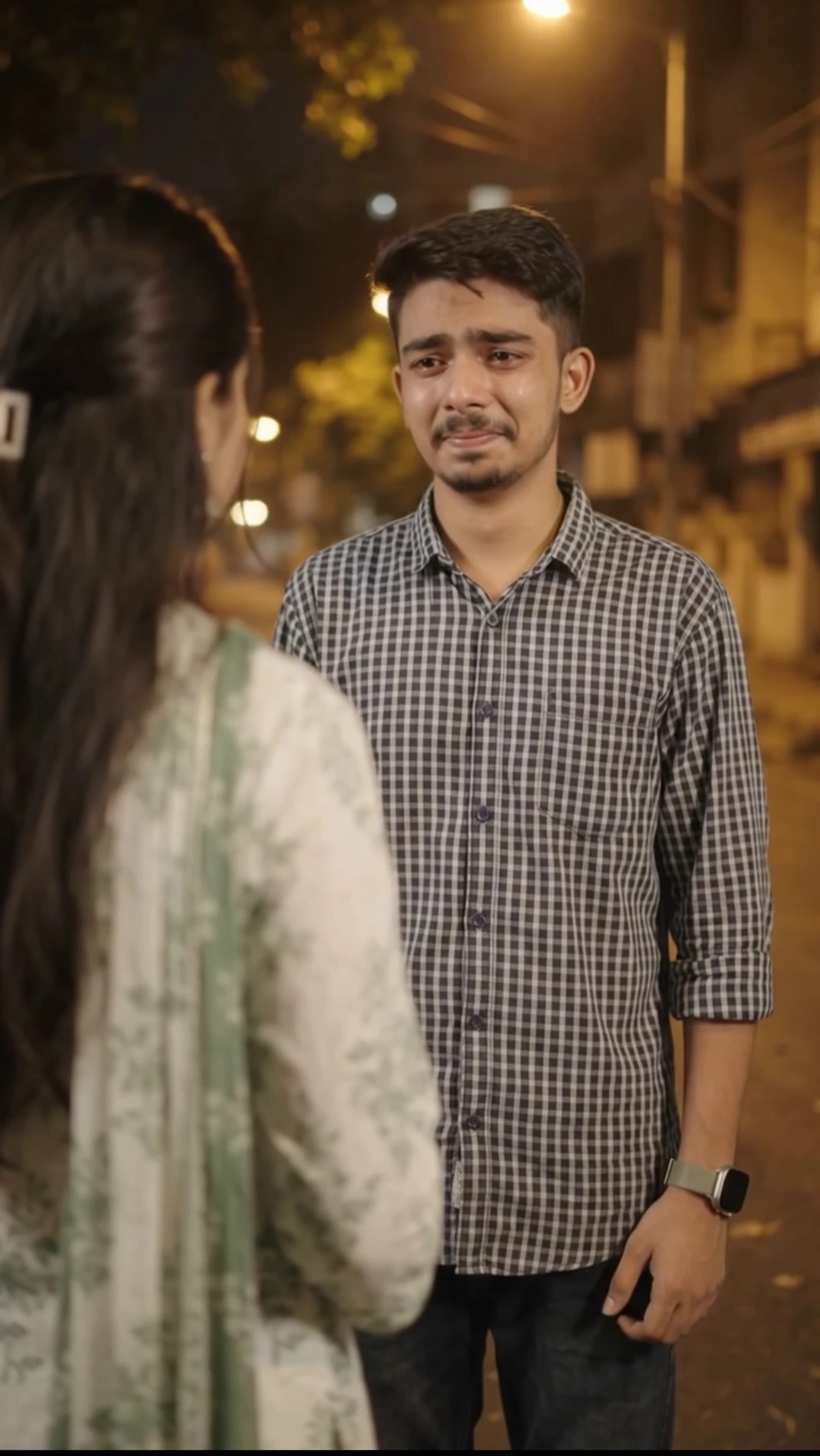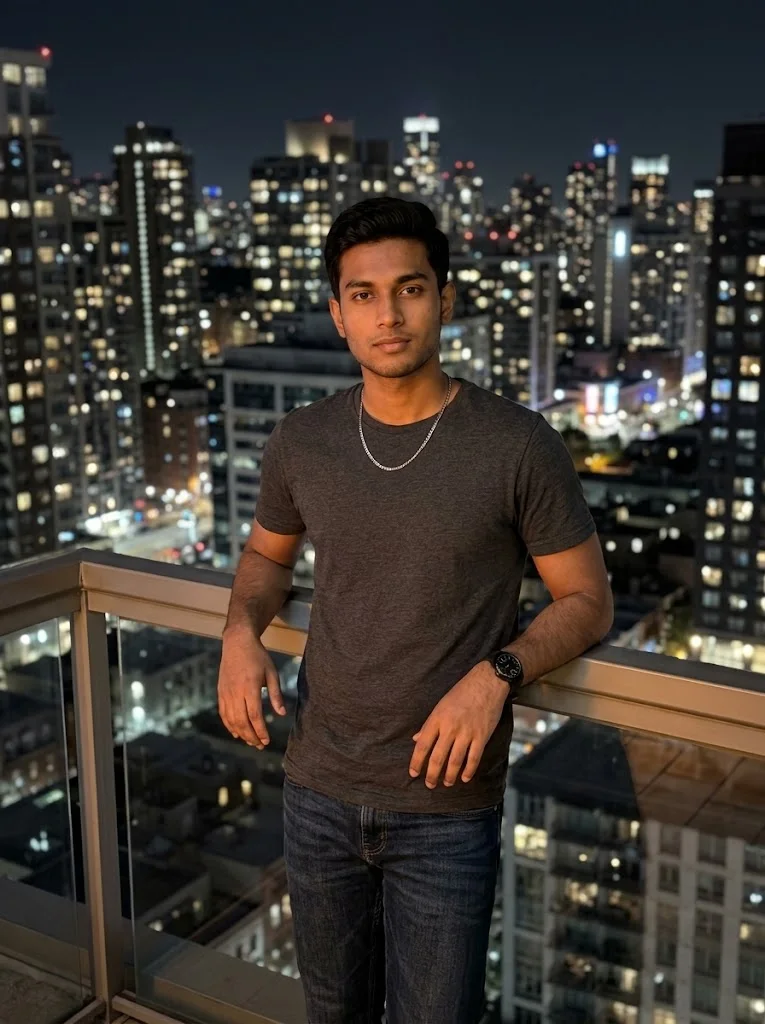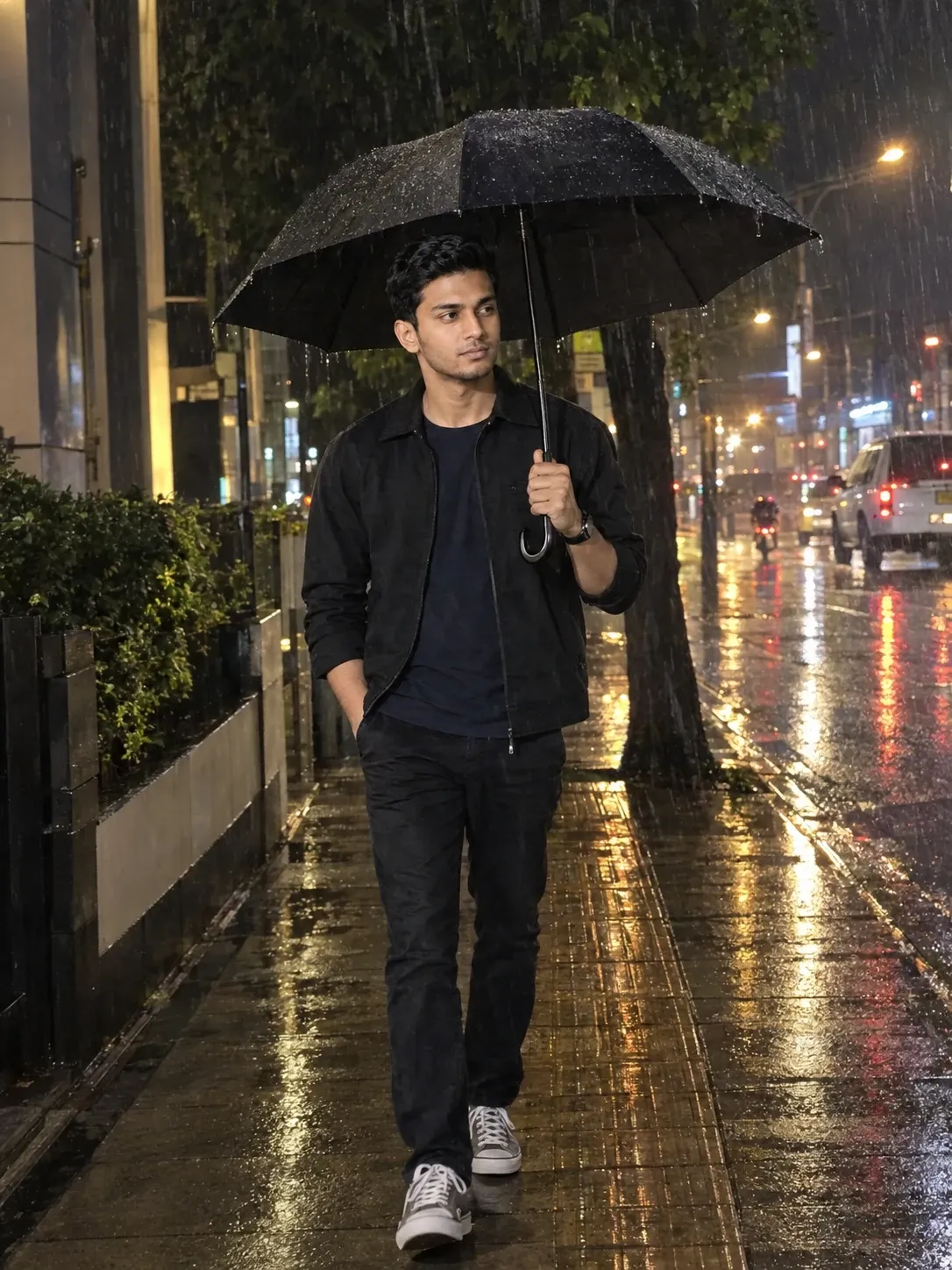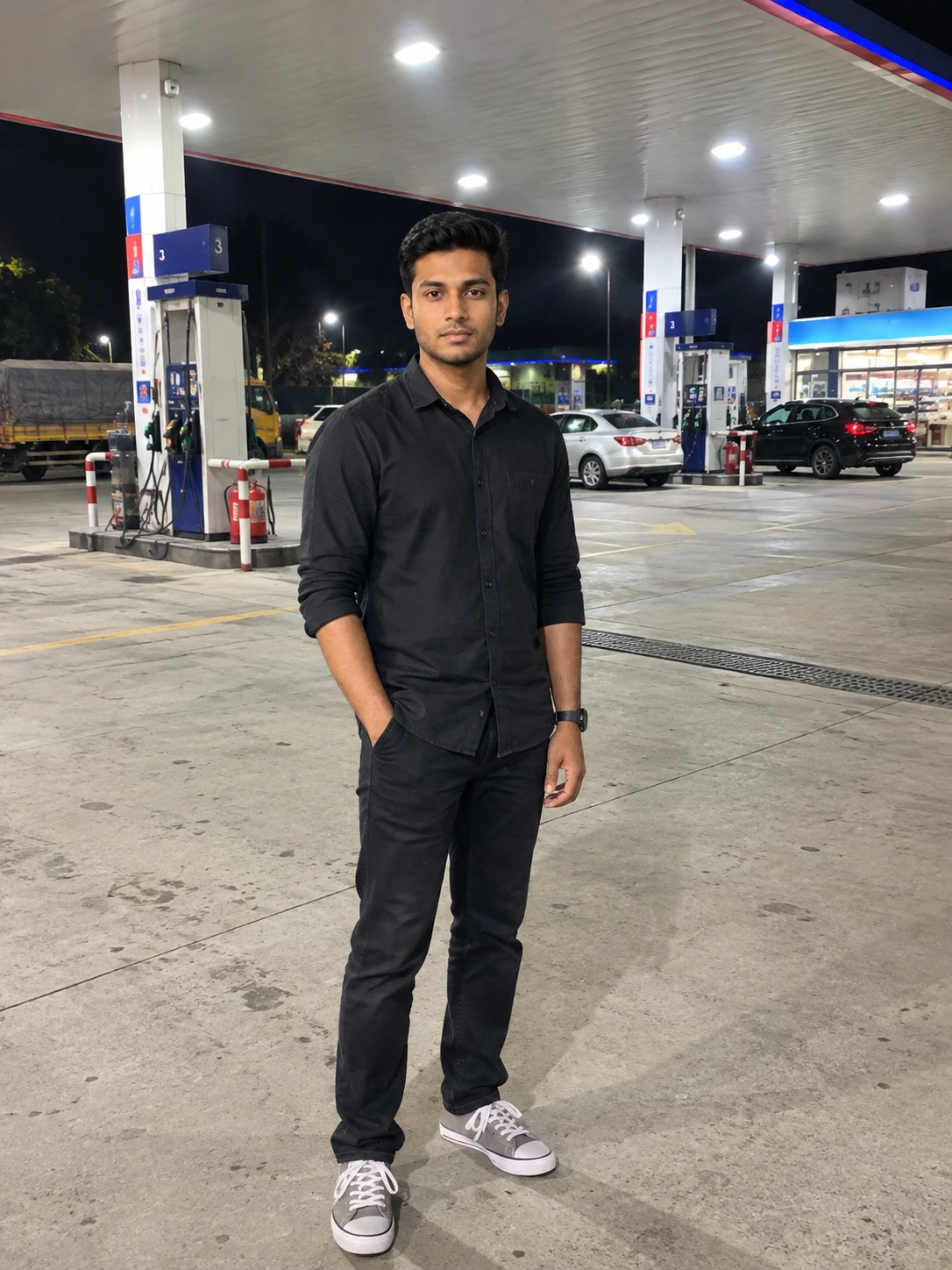
ChatGPT Travel Thumbnail Prompt for YouTube
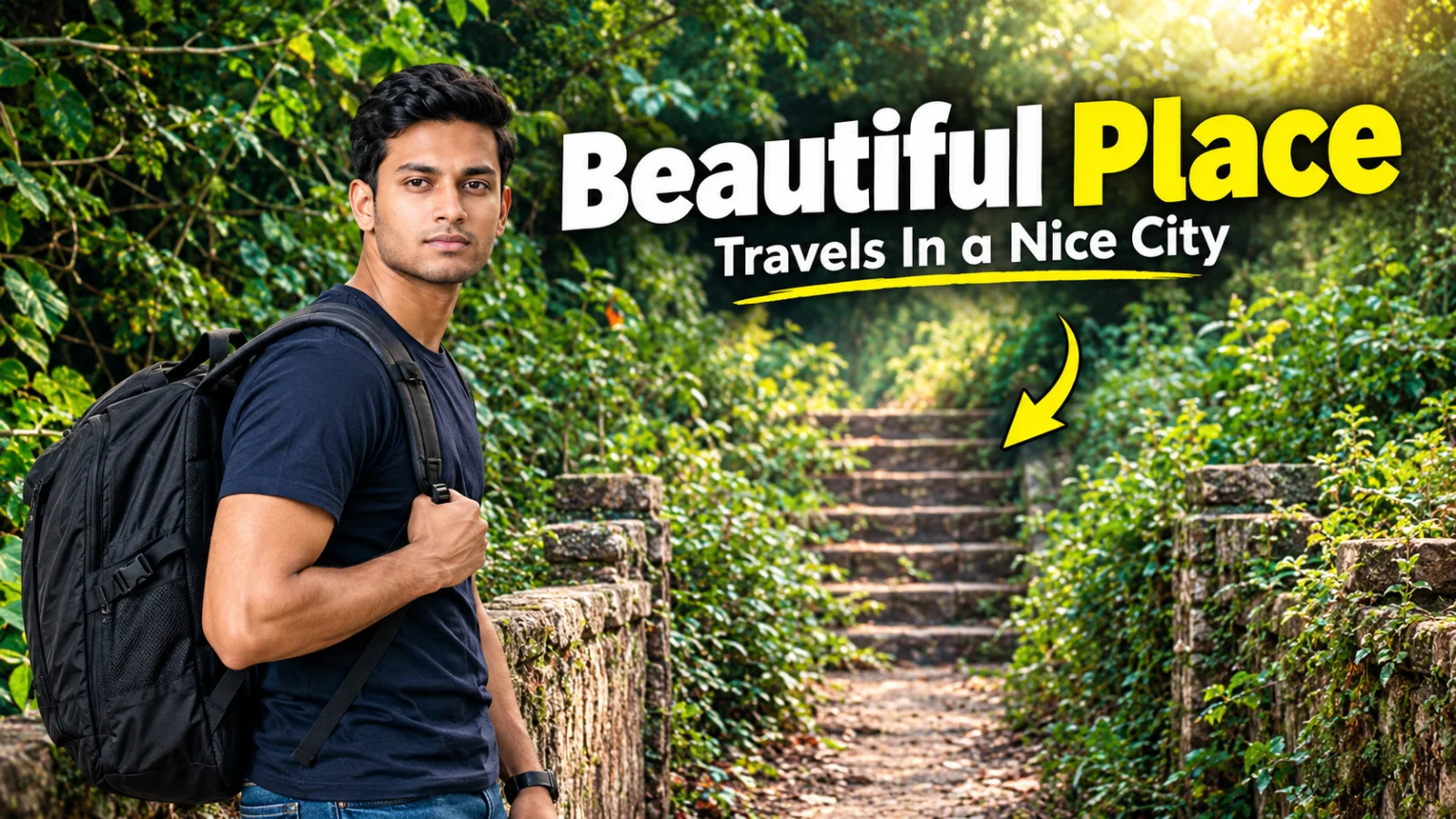
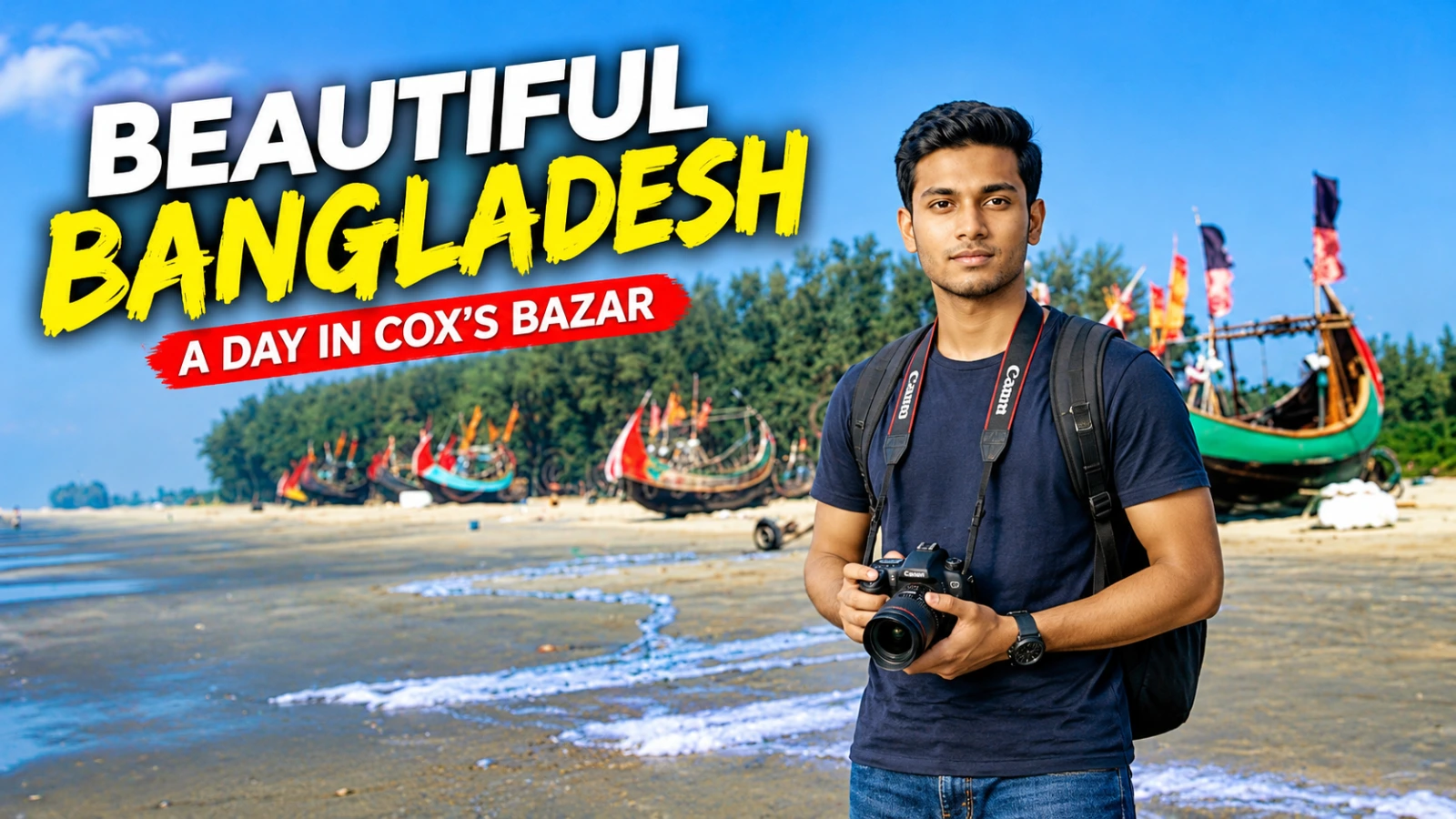
Create a professional, photorealistic 16:9 YouTube travel thumbnail using ChatGPT and two uploaded reference images. Use the first image as the original destination background and the second as the person reference. Preserve the actual scenery, maintain the person's recognizable facial identity, and create a new, natural pose that suits the selected travel theme.
This customizable prompt supports beaches, waterfalls, mountains, lakes, islands, cities, historical landmarks, forests, road trips, and other destinations. It includes professional background enhancement, realistic person integration, bold headline typography, optional subtitles, and an optional yellow directional arrow.
Users can customize the main title, subtitle, travel theme, destination, person placement, pose, camera angle, arrow, visual style, and color mood before generating the thumbnail. The default settings are editable, so the prompt can be adapted to different travel videos and YouTube channels.
For the best results, upload two separate, high-quality images: one clear background photo showing the destination and one sharp, well-lit photo of the person. Blurry, dark, pixelated, or heavily filtered portraits may reduce facial accuracy. High-quality references improve the chances of preserving the person's recognizable identity, but exact results are not guaranteed.
This customizable prompt supports beaches, waterfalls, mountains, lakes, islands, cities, historical landmarks, forests, road trips, and other destinations. It includes professional background enhancement, realistic person integration, bold headline typography, optional subtitles, and an optional yellow directional arrow.
Users can customize the main title, subtitle, travel theme, destination, person placement, pose, camera angle, arrow, visual style, and color mood before generating the thumbnail. The default settings are editable, so the prompt can be adapted to different travel videos and YouTube channels.
For the best results, upload two separate, high-quality images: one clear background photo showing the destination and one sharp, well-lit photo of the person. Blurry, dark, pixelated, or heavily filtered portraits may reduce facial accuracy. High-quality references improve the chances of preserving the person's recognizable identity, but exact results are not guaranteed.
📝 Prompt 1
PROFESSIONAL YOUTUBE TRAVEL & DESTINATION THUMBNAIL AI PROMPT — ChatGPT OPTIMIZED
Create ONE premium-quality, photorealistic, professional 16:9 YouTube thumbnail using the user's customization settings and uploaded reference images.
This is a UNIVERSAL TRAVEL THUMBNAIL PROMPT. It can be used for beaches, waterfalls, mountains, lakes, islands, forests, cities, villages, historical monuments, temples, palaces, famous landmarks, hidden destinations, adventure locations, road trips, nature exploration, and other travel-related themes.
Follow the user's selected theme and destination. Do not assume that every thumbnail must feature a beach, turquoise water, tropical greenery, or cliffs.
1\. CUSTOMIZATION SETTINGS — EDIT THESE FIRST

MAIN TITLE: [Beautiful Place]

OPTIONAL SUBTITLE: [ Travels In a Nice City]

TRAVEL THEME: [MYSTERY DESTINATION / BEACH ADVENTURE / WATERFALL EXPLORATION / MOUNTAIN ESCAPE / CITY TRAVEL / HISTORICAL LANDMARK / NATURE DISCOVERY / ROAD TRIP / CUSTOM THEME]


DESTINATION / MAIN ATTRACTION: [SECRET BEACH / HIDDEN WATERFALL / MOUNTAIN LAKE / REMOTE ISLAND / ANCIENT PALACE / FAMOUS CITY / FOREST / CUSTOM LOCATION]
BACKGROUND IMAGE: [USE MY UPLOADED BACKGROUND IMAGE / GENERATE ONE BACKGROUND FROM MY SELECTED DESTINATION]
PERSON PHOTO: [USE MY UPLOADED PERSON PHOTO / NO PERSON]
PERSON POSITION: [LEFT SIDE / RIGHT SIDE / CENTER WHEN SUITABLE]
PERSON POSE AND LOOK: [CREATE A NEW, NATURAL POSE AND LOOK THAT SUITS THE SELECTED THEME]
CAMERA ANGLE: [EYE LEVEL / SLIGHT LOW ANGLE / THREE-QUARTER VIEW / WIDE TRAVEL COMPOSITION]
ARROW: [ONE ELEGANT YELLOW ARROW POINTING TOWARD THE MAIN ATTRACTION / NO ARROW]
VISUAL STYLE: [CINEMATIC TRAVEL / MYSTERY EXPLORATION / LUXURY TRAVEL / ADVENTURE VLOG / NATURAL AND REALISTIC]
COLOR MOOD: [VIBRANT AND WARM / GOLDEN HOUR / COOL AND MOODY / NATURAL COLORS / MATCH THE UPLOADED BACKGROUND]
2\. UNIVERSAL DESTINATION RULES
Create one visually compelling destination that matches the selected TRAVEL THEME and DESTINATION.
Adapt the scenery to the actual subject. For example:

- Beach: realistic coastline, waves, sand, and coastal scenery.
- Waterfall: flowing water, rocks, mist, and surrounding vegetation appropriate to the location.
- Mountains: dramatic peaks, valleys, natural atmospheric depth, and realistic terrain.
- Lake or island: believable water, shoreline, surrounding landscape, and appropriate reflections.
- City: recognizable architecture, streets, skyline, and a realistic urban atmosphere.
- Historical landmark: preserve the landmark's recognizable architectural details and historical character.
- Forest or nature exploration: natural vegetation, trails, realistic depth, and environmental details.
- Road trip: a believable road, surrounding landscape, and a composition suited to the journey.
- Custom destination: follow the user's specific location and visual instructions.

These are examples, not mandatory elements. Use only the scenery appropriate to the selected destination.
Do not combine unrelated locations, landmarks, climates, or environments. Create a coherent scene that looks like one believable destination.
3\. STRICT BACKGROUND IMAGE RULES
If the user uploads a background image, use that exact image as the actual background of the thumbnail.
Edit and enhance the uploaded background to create a professional result. Improve exposure, contrast, color grading, clarity, lighting balance, and visual depth where appropriate, while preserving the recognizable destination and its important features.
Do not replace the uploaded background with a newly generated scene. Do not combine it with another photograph, stock image, unrelated landscape, additional landmark, or a second background.
Do not add extra background images, picture-in-picture layouts, photo frames, or collages.
If no background image is uploaded, generate exactly ONE destination-specific background based on the user's selected theme and location.
If the user selects a custom location, follow the supplied description. Do not invent a different destination.
4\. PERSON PHOTO — PRESERVE IDENTITY, CREATE A NEW POSE
If the user uploads a person photo, use that exact person as the foreground subject.
Preserve the person's original identity, facial features, face shape, skin tone, apparent age, hairstyle, hairline, facial hair, and natural body proportions.
Do not replace the face with another person's face. Do not change the person's apparent age, reshape their body, or apply excessive beauty enhancement.
IMPORTANT: The uploaded photo is an identity reference, not a pose template.
The original photo may show the person in any pose, outfit, expression, or camera angle. Do not automatically copy that original pose or reproduce the original photo's overall look.
Instead, create ONE new, natural, theme-appropriate pose and visual presentation that works with the selected destination and thumbnail composition.
Examples of suitable poses include:

- Looking toward the main attraction.
- Turning the body toward the destination.
- Looking back over one shoulder.
- Pointing toward the main attraction when appropriate.
- Standing confidently as a travel vlogger.
- Walking naturally through a suitable location.
- Looking at the scenery in a relaxed three-quarter pose.

Select the pose that best suits the selected theme. Do not combine multiple poses.
Keep the person's body position, gaze, hands, and facial expression natural. Maintain realistic anatomy and believable interaction with the environment.
Do not force an elaborate full-body pose if the uploaded photo only supports a face or upper-body composition. Choose a suitable crop instead.
If PERSON PHOTO is set to NO PERSON, do not add a human subject.
5\. MAKE THE PERSON CLEAR AND NATURALLY INTEGRATED
When a person photo is uploaded, make the person a prominent and clearly visible foreground subject.
Position the person according to PERSON POSITION, adapting the exact placement to the background and headline.
Keep the face sharp, properly exposed, and recognizable at small thumbnail sizes. Show enough of the body to communicate the selected pose without unnecessarily cropping the head, face, hands, or important gestures.
Use realistic edge blending, perspective, scale, shadows, and lighting to make the person appear naturally present in the destination.
Match the person's lighting and color balance to the background without making the skin look artificial.
Do not allow the person to become too small, dark, blurry, faded, or visually lost in the scenery.
Do not cover the face with the headline, arrow, or decorative graphics.
6\. PROFESSIONAL HEADLINE DESIGN — STRICT TEXT-SAFE AREA
Render the MAIN TITLE exactly as supplied by the user.
First evaluate the background, person position, destination, and available negative space. Then select the best headline placement for the actual composition.
Use bold, modern, heavy sans-serif typography with clean letter spacing, balanced line spacing, consistent alignment, and a strong visual hierarchy.
Use white and bright yellow as the primary headline colors. Highlight the most important word in yellow and use white for the remaining words when appropriate. Adjust the text treatment to maintain strong contrast against the actual background.
Use a restrained dark outline or subtle shadow for readability. Avoid bulky 3D effects, exaggerated extrusion, excessive glow, distorted letters, and unnecessary decorative typography.
STRICT PLACEMENT REQUIREMENTS:

- Keep every letter, word, outline, and shadow fully inside the image boundaries.
- Maintain approximately 7% horizontal and 8% vertical safe margins.
- Keep the headline within approximately 60–65% of the canvas width, reducing it when the composition requires.
- Use no more than two lines for the main title.
- Break lines only between complete words.
- Never split words, stretch letters, or squeeze the text unnaturally.
- Reduce the font size when needed rather than allowing text to touch or cross the edges.
- Do not cover the person's face or the main attraction.
- Prefer the cleanest available upper-left or upper-center area, but adapt the placement to the actual background.

If the background is busy, apply subtle local darkening or a restrained gradient behind the headline. Avoid a large, distracting text box unless it is genuinely necessary.
The typography must look professionally designed for a YouTube thumbnail, not randomly pasted onto a photograph.
If exact text rendering is unreliable, prioritize a clean text-safe area rather than producing misspelled or distorted words.
7\. OPTIONAL SUBTITLE
If OPTIONAL SUBTITLE contains actual text, render it exactly as supplied.
Keep it smaller than the main title and use a complementary, clean typeface. Position it directly below or near the main title only when sufficient space is available.
If the subtitle is empty or says LEAVE EMPTY, do not add one.
Do not invent any additional wording.
8\. PROFESSIONAL DIRECTIONAL ARROW — OPTIONAL
If ARROW is set to ONE ELEGANT YELLOW ARROW POINTING TOWARD THE MAIN ATTRACTION, add exactly ONE visually polished yellow arrow.
Design it as a smooth, clean arrow with a well-proportioned shaft and arrowhead. Use a rich yellow fill with a thin dark outline or subtle shadow for separation from the background.
Choose the direction, curve, angle, and placement based on the actual destination and composition.
The arrow tip must point toward the selected main attraction, not an unrelated object or empty space.
Keep the arrow completely inside the frame. Do not cross the person's face, cover the headline, or hide the important part of the destination.
Use an elegant curve when it improves the composition. Avoid awkward bends, jagged edges, oversized arrowheads, exaggerated 3D effects, or sticker-like graphics.
If ARROW is set to NO ARROW, do not add an arrow.
Do not add extra arrows, circles, markers, or attention-grabbing stickers.
9\. PROFESSIONAL BACKGROUND AND COLOR GRADING
Make the entire thumbnail feel like one cohesive, professionally edited image.
Use natural lighting, realistic textures, controlled contrast, refined color grading, appropriate atmospheric depth, and clear foreground-background separation.
Match the headline colors and arrow treatment to the background so they remain readable without overpowering the destination.
For mystery themes, create intrigue through composition, lighting, and visual focus rather than artificial fantasy effects.
For luxury travel, use refined contrast and elegant color balance. For adventure, emphasize the scale and energy of the environment. For natural travel, preserve realistic colors and textures.
These are visual directions, not permission to add unrelated objects or change the uploaded location.
Avoid clutter, duplicated subjects, random objects, excessive saturation, unrealistic water, distorted architecture, unnatural anatomy, artificial skin, excessive lens flares, and unnecessary graphic elements.
10\. FINAL COMPOSITION AND OUTPUT
Create a single cohesive thumbnail in a 16:9 landscape aspect ratio, preferably 1280 × 720 pixels or equivalent.
Prioritize:

1. A bold, correctly positioned, readable headline.
2. The selected destination or main attraction.
3. A clearly visible person with a new, suitable pose, if a person photo is provided.
4. One elegant directional arrow only when requested.

Generate exactly ONE finished thumbnail image per request.
Do not generate multiple alternatives, a collage, a grid, a contact sheet, or several thumbnails in one image.
The only permitted text is the exact MAIN TITLE and, when supplied, the exact OPTIONAL SUBTITLE. Do not invent captions, slogans, location labels, logos, brand marks, or watermarks.
FINAL REQUIREMENT: Follow all customization settings. Use the user's uploaded background as the actual background whenever provided. Use the uploaded person as the foreground subject whenever provided, preserving their identity while creating a new, appropriate pose. Professionally edit the scene, keep the person clearly visible, keep all text inside the frame, and create an attractive arrow only when selected.
Deliver ONE polished, realistic, professional YouTube thumbnail that matches the user's chosen theme and destination.
You May Also Like
Use this prompt :
ChatGPT
How to Use This Prompt
1. Open ChatGPT and choose an image-generation or image-editing feature that supports uploading reference images.
2. Before using the prompt, prepare TWO separate images:
• Image 1 — Background: The actual destination, scenery, landmark, beach, waterfall, mountain, city, or other location you want in your thumbnail.
• Image 2 — Person: A clear photo of the person you want to feature in the thumbnail.
3. IMPORTANT — Upload high-quality images. The background photo should clearly show the destination, and the person's face should be sharp, well-lit, and recognizable. Avoid blurry, dark, pixelated, low-resolution, or heavily filtered portraits. Poor-quality face references may cause the generated person to look different. Better images improve the chances of preserving identity, but exact face matching is not guaranteed.
4. Copy the complete thumbnail prompt from the website and paste it into a Notepad or another plain-text editor before uploading your images. This lets you customize the settings without accidentally changing the main instructions.
5. Find the following lines near the beginning of the prompt:
MAIN TITLE: [Beautiful Place]
OPTIONAL SUBTITLE: [ Travels In a Nice City]
Replace the words inside the square brackets with your own thumbnail text. For example:
MAIN TITLE: HIDDEN PARADISE
OPTIONAL SUBTITLE: Discover A Beautiful Island
Keep the setting labels MAIN TITLE and OPTIONAL SUBTITLE unchanged. Replace only the example text. You may also leave the subtitle empty if you do not want a second line of text.
6. Continue through the customization settings and change any options you want:
• TRAVEL THEME: Choose a beach adventure, waterfall exploration, mountain escape, city travel, historical landmark, nature discovery, road trip, or your own theme.
• DESTINATION / MAIN ATTRACTION: Enter the actual destination or attraction you want to feature.
• BACKGROUND IMAGE: Select “USE MY UPLOADED BACKGROUND IMAGE” when using your own background photo.
• PERSON PHOTO: Select “USE MY UPLOADED PERSON PHOTO” if you want a person in the thumbnail, or “NO PERSON” if you want a destination-only design.
• PERSON POSITION: Choose the left side, right side, or center when suitable.
• PERSON POSE AND LOOK: Describe the natural pose or expression you prefer.
• CAMERA ANGLE: Choose eye level, slight low angle, three-quarter view, or wide travel composition.
• ARROW: Choose one yellow arrow pointing toward the main attraction, or select “NO ARROW.”
• VISUAL STYLE: Choose cinematic travel, mystery exploration, luxury travel, adventure vlog, or a natural realistic style.
• COLOR MOOD: Choose warm vibrant colors, golden hour, cool and moody colors, natural colors, or colors that match your uploaded background.
7. If you do not want to customize every setting, simply change the title and subtitle and leave the other instructions at their default values. Only edit the options you want to change.
8. After editing, copy the complete updated prompt from Notepad and return to ChatGPT. Upload the two images in the correct order — background first, person photo second — and submit the complete prompt together with both images.
9. Ask ChatGPT to generate ONE finished thumbnail in 16:9 landscape format, preferably 1280 × 720 pixels if supported. The first image should remain the actual background, while the second image should provide the person if you selected that option.
10. Review the result carefully. Check the person's face, background scenery, pose, text spelling, title placement, subtitle, arrow direction, and overall image quality. If anything is incorrect, ask ChatGPT to revise that specific detail.
IMPORTANT: Do not reverse the two uploaded images. Always upload the background first and the person photo second. Make sure your edited title and subtitle match your intended YouTube video before generating the thumbnail.
2. Before using the prompt, prepare TWO separate images:
• Image 1 — Background: The actual destination, scenery, landmark, beach, waterfall, mountain, city, or other location you want in your thumbnail.
• Image 2 — Person: A clear photo of the person you want to feature in the thumbnail.
3. IMPORTANT — Upload high-quality images. The background photo should clearly show the destination, and the person's face should be sharp, well-lit, and recognizable. Avoid blurry, dark, pixelated, low-resolution, or heavily filtered portraits. Poor-quality face references may cause the generated person to look different. Better images improve the chances of preserving identity, but exact face matching is not guaranteed.
4. Copy the complete thumbnail prompt from the website and paste it into a Notepad or another plain-text editor before uploading your images. This lets you customize the settings without accidentally changing the main instructions.
5. Find the following lines near the beginning of the prompt:
MAIN TITLE: [Beautiful Place]
OPTIONAL SUBTITLE: [ Travels In a Nice City]
Replace the words inside the square brackets with your own thumbnail text. For example:
MAIN TITLE: HIDDEN PARADISE
OPTIONAL SUBTITLE: Discover A Beautiful Island
Keep the setting labels MAIN TITLE and OPTIONAL SUBTITLE unchanged. Replace only the example text. You may also leave the subtitle empty if you do not want a second line of text.
6. Continue through the customization settings and change any options you want:
• TRAVEL THEME: Choose a beach adventure, waterfall exploration, mountain escape, city travel, historical landmark, nature discovery, road trip, or your own theme.
• DESTINATION / MAIN ATTRACTION: Enter the actual destination or attraction you want to feature.
• BACKGROUND IMAGE: Select “USE MY UPLOADED BACKGROUND IMAGE” when using your own background photo.
• PERSON PHOTO: Select “USE MY UPLOADED PERSON PHOTO” if you want a person in the thumbnail, or “NO PERSON” if you want a destination-only design.
• PERSON POSITION: Choose the left side, right side, or center when suitable.
• PERSON POSE AND LOOK: Describe the natural pose or expression you prefer.
• CAMERA ANGLE: Choose eye level, slight low angle, three-quarter view, or wide travel composition.
• ARROW: Choose one yellow arrow pointing toward the main attraction, or select “NO ARROW.”
• VISUAL STYLE: Choose cinematic travel, mystery exploration, luxury travel, adventure vlog, or a natural realistic style.
• COLOR MOOD: Choose warm vibrant colors, golden hour, cool and moody colors, natural colors, or colors that match your uploaded background.
7. If you do not want to customize every setting, simply change the title and subtitle and leave the other instructions at their default values. Only edit the options you want to change.
8. After editing, copy the complete updated prompt from Notepad and return to ChatGPT. Upload the two images in the correct order — background first, person photo second — and submit the complete prompt together with both images.
9. Ask ChatGPT to generate ONE finished thumbnail in 16:9 landscape format, preferably 1280 × 720 pixels if supported. The first image should remain the actual background, while the second image should provide the person if you selected that option.
10. Review the result carefully. Check the person's face, background scenery, pose, text spelling, title placement, subtitle, arrow direction, and overall image quality. If anything is incorrect, ask ChatGPT to revise that specific detail.
IMPORTANT: Do not reverse the two uploaded images. Always upload the background first and the person photo second. Make sure your edited title and subtitle match your intended YouTube video before generating the thumbnail.