Realistic Luxury Car Cinematic Video AI Prompt
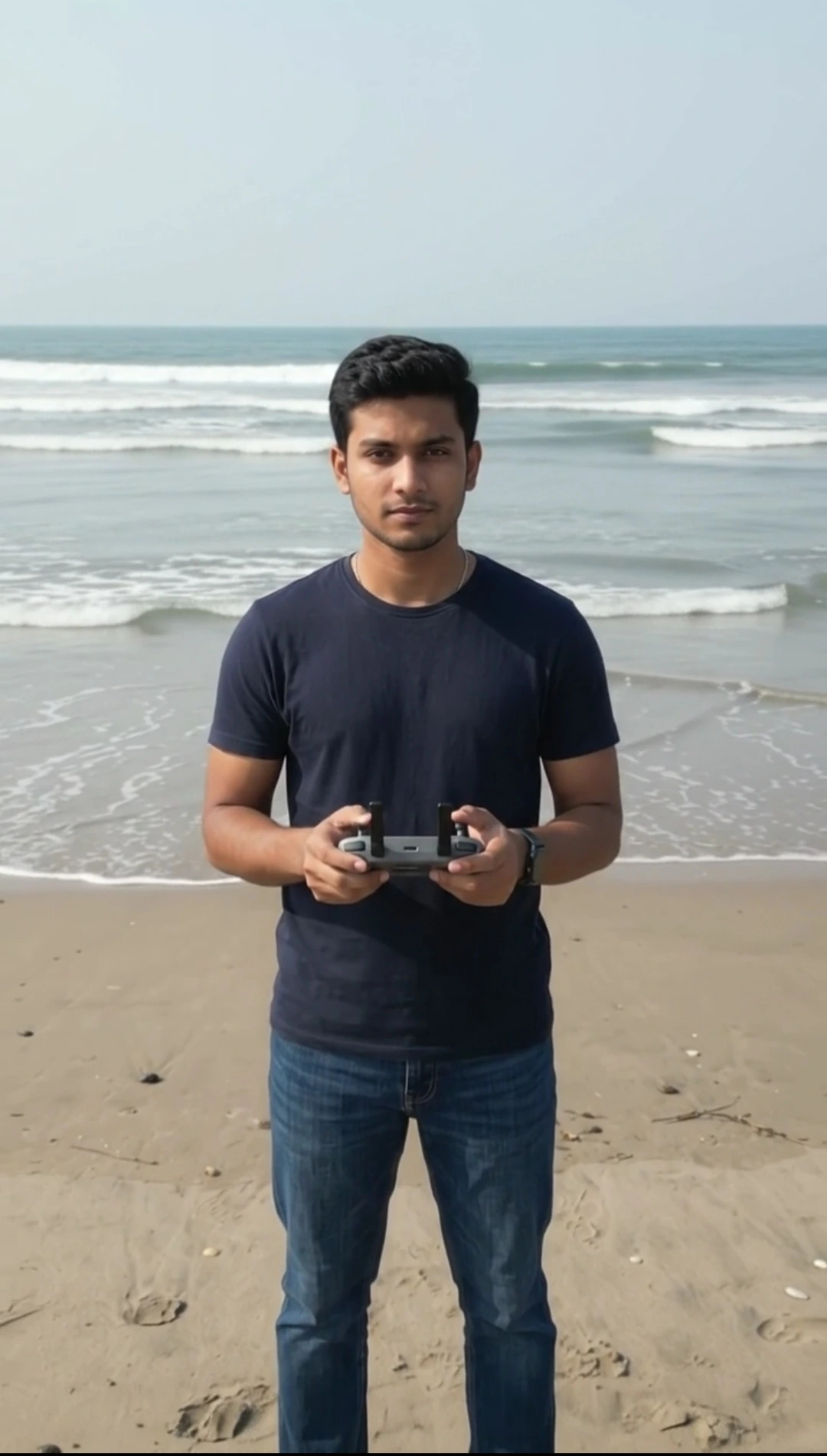
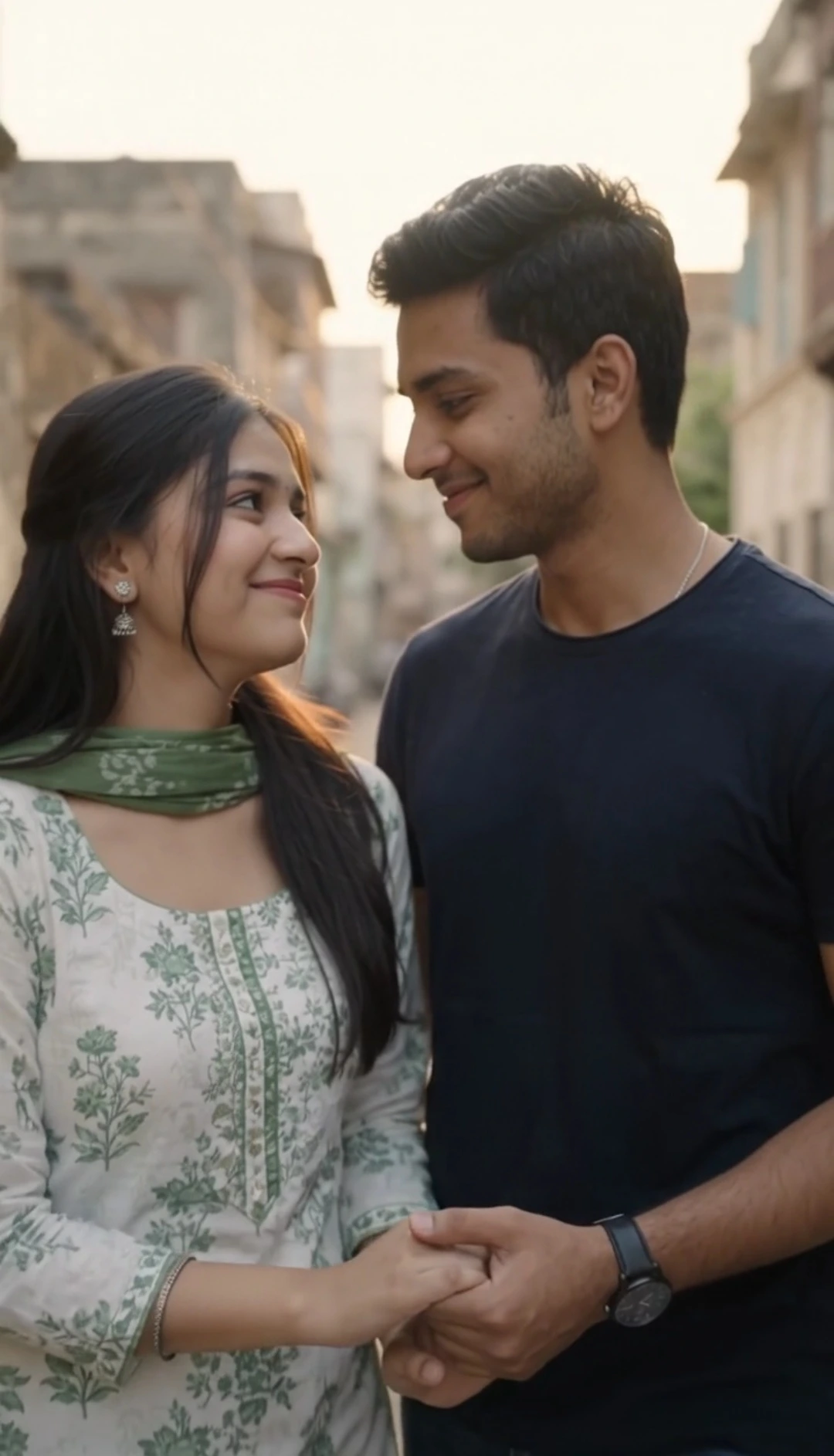
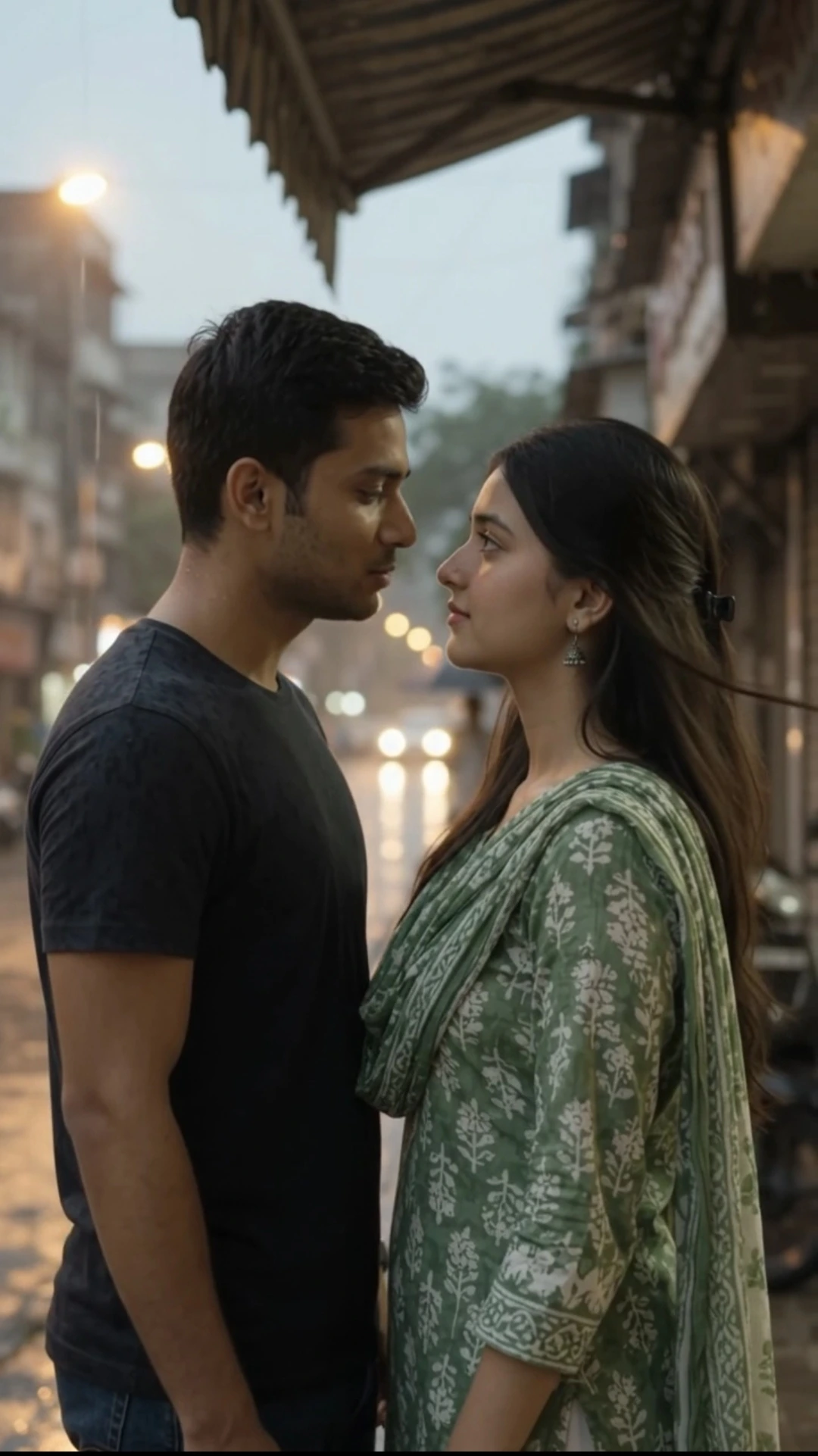
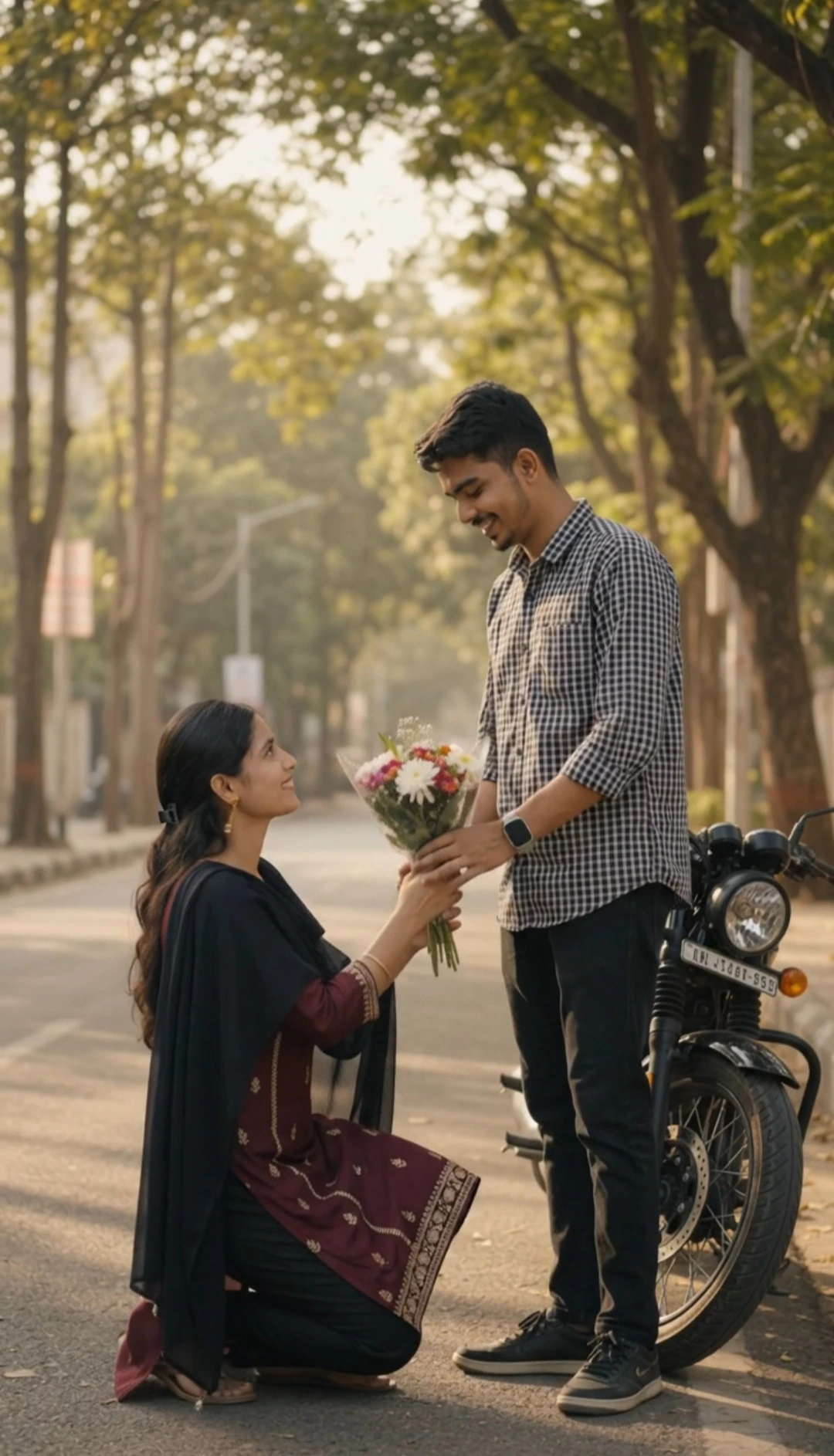
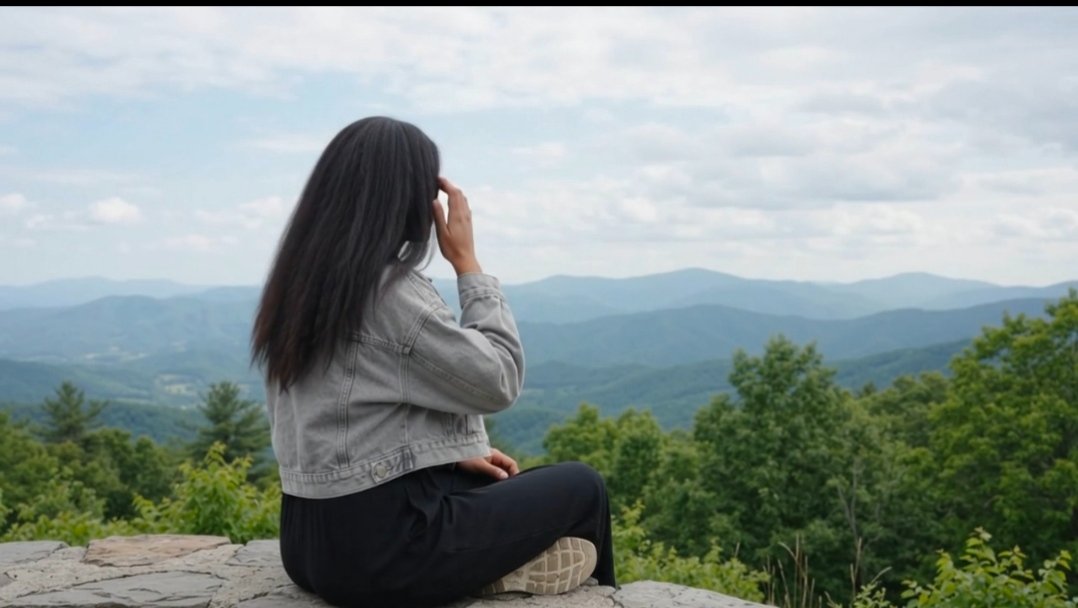
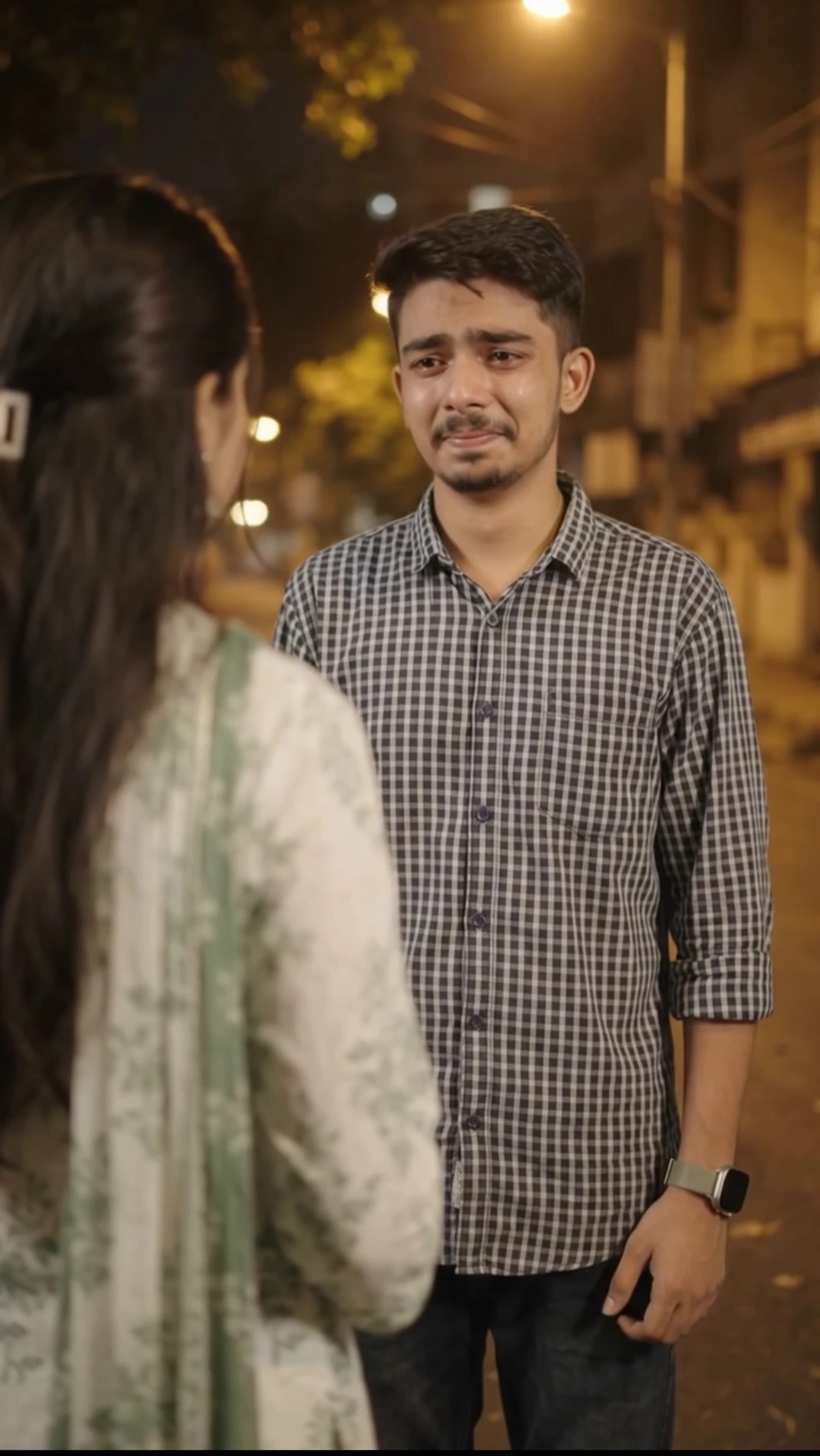
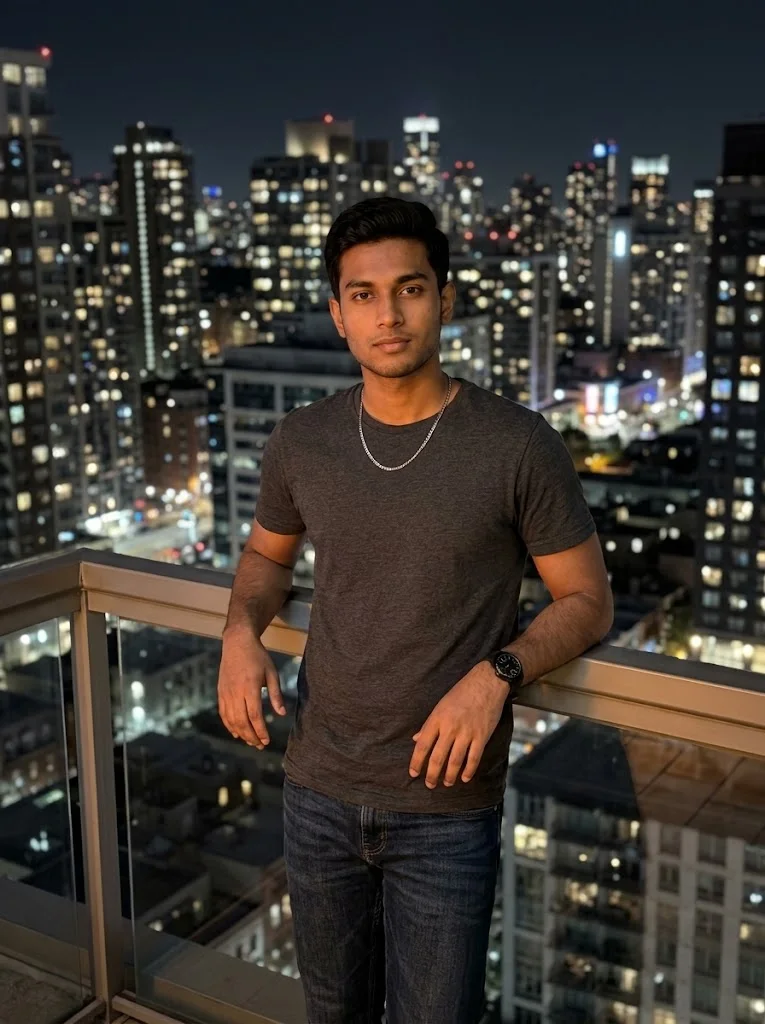
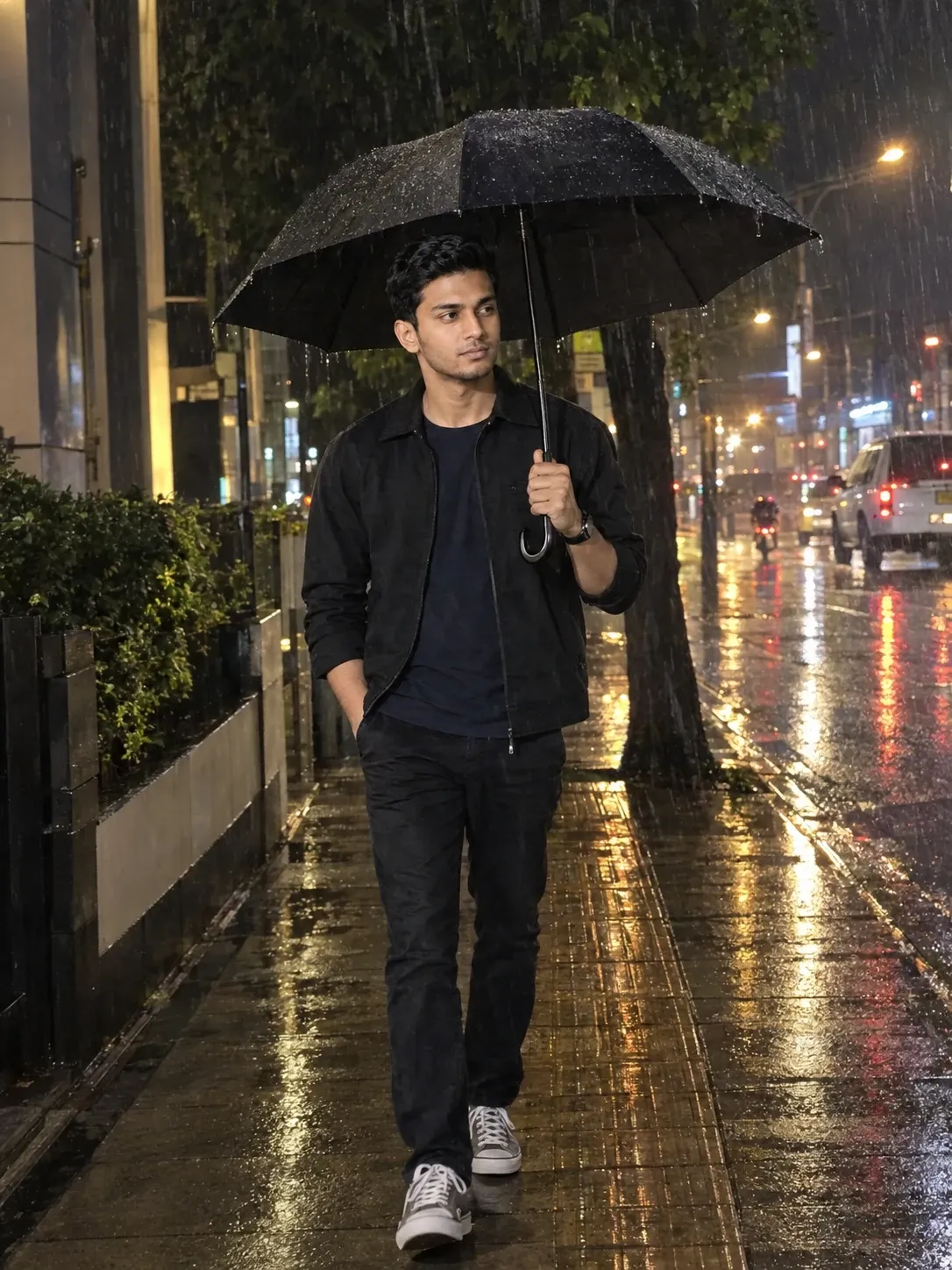
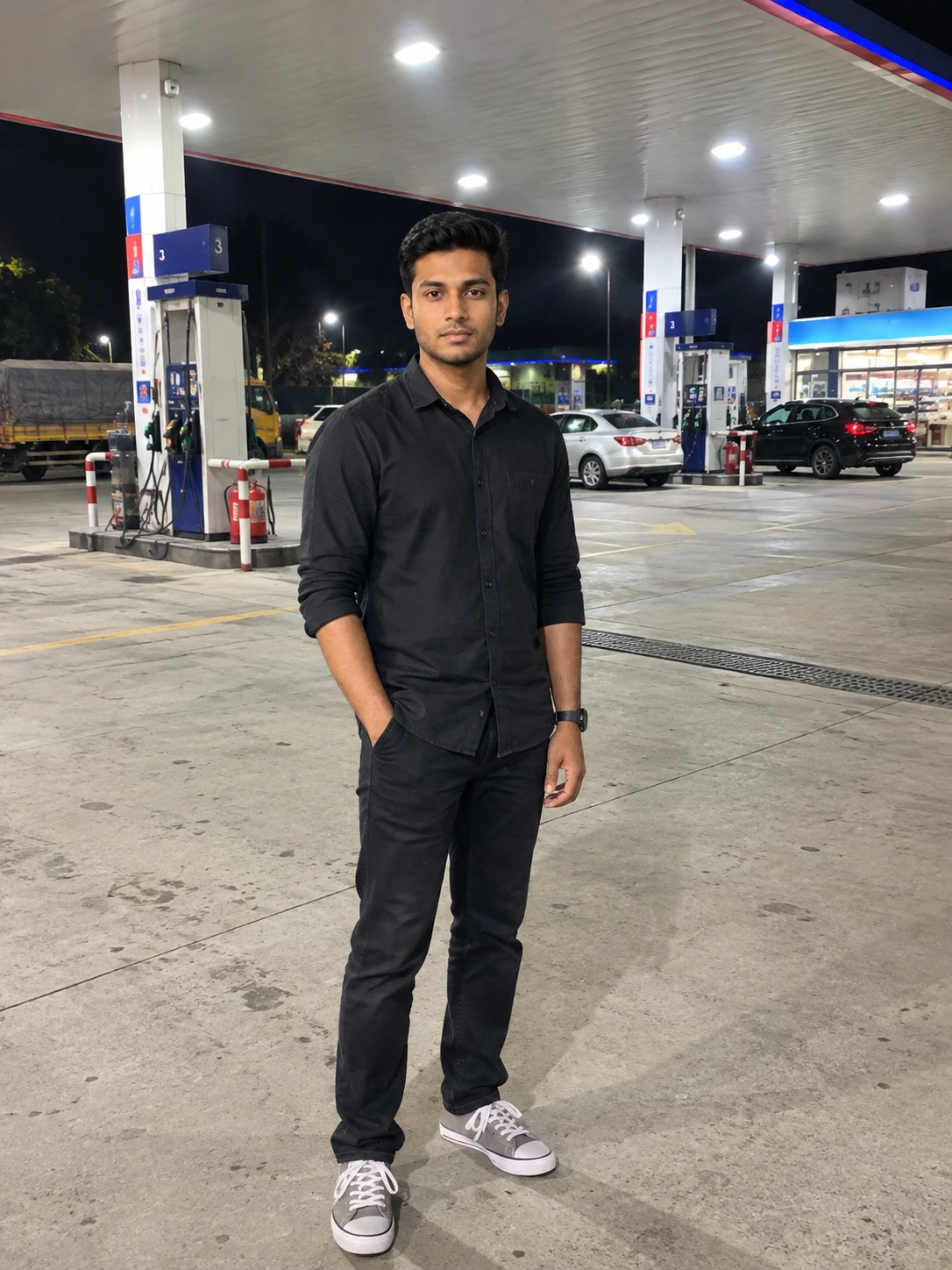
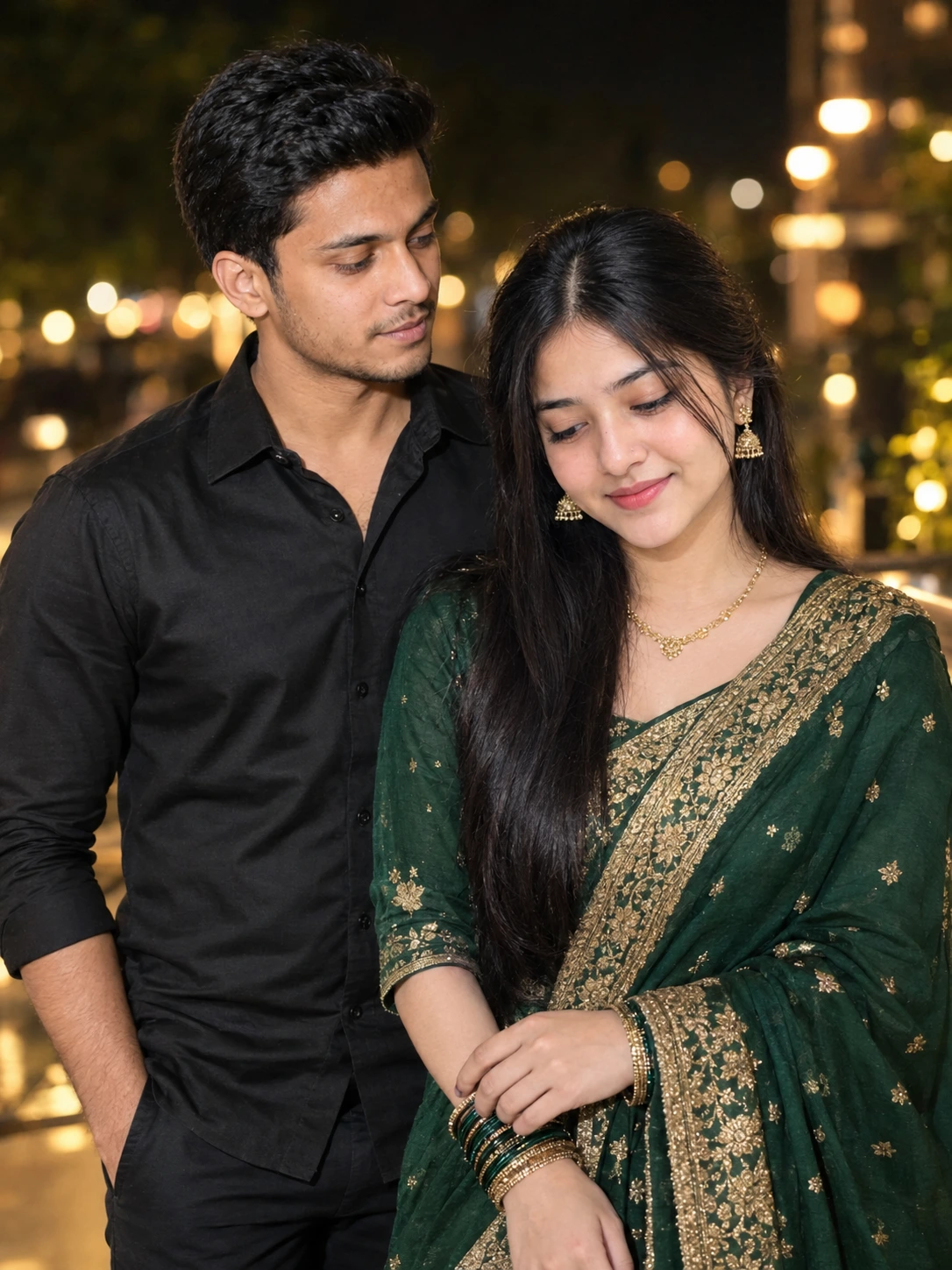
Create an ultra-realistic cinematic car video using your own original photo together with the provided reference video. This prompt is designed to maintain the male subject’s original face, identity, body appearance, hairstyle, skin tone, and natural expressions while creating a realistic cinematic video with natural movement and camera motion.
For the best results, this prompt should be used with **Google Flow AI**, using both the reference video and your original photo as inputs. The prompt is designed to help maintain visual consistency while recreating the camera movement, framing, lighting, pacing, and overall cinematic feel of the reference video.
📥 Download Reference Video
For the best results, this prompt should be used with **Google Flow AI**, using both the reference video and your original photo as inputs. The prompt is designed to help maintain visual consistency while recreating the camera movement, framing, lighting, pacing, and overall cinematic feel of the reference video.
📥 Download Reference Video
📝 Prompt 1
the reference video's camera movement, framing, lighting, pacing Create an ultra-realistic cinematic video of the same young man sitting naturally in the driver's seat of a black luxury Mercedes car. Keep his face exactly consistent with the reference photo, including facial features, hairstyle, skin tone and light beard. He looks naturally toward the side, smiles slightly, then looks forward while keeping one hand naturally on the steering wheel. Realistic human movement, natural blinking, subtle head movement and breathing. Show authentic car interior, steering wheel and dashboard. Camera slowly moves from a close front windshield view toward a slightly closer side angle. Realistic windshield reflections and tinted glass, natural daylight, accurate shadows, realistic skin texture, shallow depth of field, cinematic color grading, 4K, highly photorealistic, no face distortion, no extra fingers, no warped hands, no artificial-looking face. Match natural facial expressions. Make it look like a real camera-recorded video, not Al-generated. But keep in mind that the original face and body from the input image must be retained; consistency must be maintained.
How to Use This Prompt
How to Use This Prompt
Step 1 — Download the Reference Video
First, go to the Description Box above and find the Google Drive link. Open the link and download the reference video to your device.
Step 2 — Open Google Flow AI
Go to Google and search for Google Flow AI. Open Flow and sign in or create an account if needed.
Step 3 — Select Video Mode
Inside Flow, go to the prompt input area and select Video from the options on the right side.
Step 4 — Set Video Settings
Set the following options:
Resolution: 720p
Duration: 8 seconds
Generation: 1×
Step 5 — Upload Your Photo
Upload your original photo as the identity/reference image. Use a clear, high-quality photo for better results.
Step 6 — Upload the Reference Video
Now upload the reference video you downloaded in Step 1 to Flow AI along with your original photo.
Step 7 — Copy the Prompt
Come back to this page, copy the complete prompt, and paste it into the Flow AI prompt box.
Step 8 — Generate Your Video
Check everything once, then press Enter/Generate. Flow AI will process your reference photo, reference video, and prompt to create the final cinematic video.
Tip: For better identity consistency, use a clear original photo and keep the identity-preservation instructions in the prompt unchanged.
Step 1 — Download the Reference Video
First, go to the Description Box above and find the Google Drive link. Open the link and download the reference video to your device.
Step 2 — Open Google Flow AI
Go to Google and search for Google Flow AI. Open Flow and sign in or create an account if needed.
Step 3 — Select Video Mode
Inside Flow, go to the prompt input area and select Video from the options on the right side.
Step 4 — Set Video Settings
Set the following options:
Resolution: 720p
Duration: 8 seconds
Generation: 1×
Step 5 — Upload Your Photo
Upload your original photo as the identity/reference image. Use a clear, high-quality photo for better results.
Step 6 — Upload the Reference Video
Now upload the reference video you downloaded in Step 1 to Flow AI along with your original photo.
Step 7 — Copy the Prompt
Come back to this page, copy the complete prompt, and paste it into the Flow AI prompt box.
Step 8 — Generate Your Video
Check everything once, then press Enter/Generate. Flow AI will process your reference photo, reference video, and prompt to create the final cinematic video.
Tip: For better identity consistency, use a clear original photo and keep the identity-preservation instructions in the prompt unchanged.